Aufnahme und Wiedergabe
Warum kann ich nicht aufnehmen?
Abschnitt betitelt „Warum kann ich nicht aufnehmen?“Gehen Sie diese Checkliste durch:
-
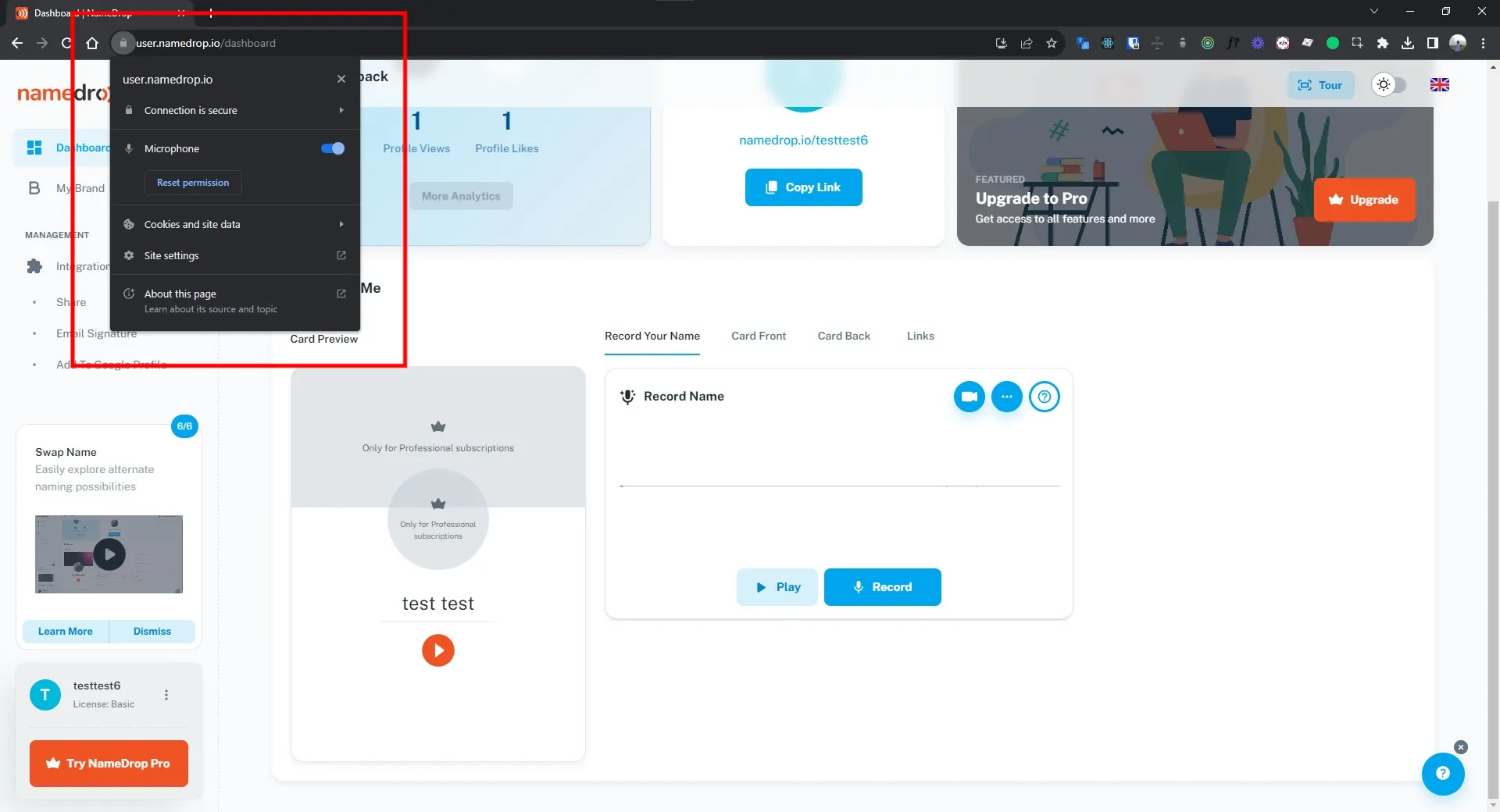
Wurde dem Browser die Mikrofon-Berechtigung erteilt?
- Chrome: Klicken Sie auf das Schloss-Icon in der URL-Leiste → Mikrofon → Zulassen.
- Firefox: Suchen Sie das Mikrofon-Icon in der URL-Leiste und erteilen Sie die Berechtigung.
- Safari: Einstellungen → Websites → Mikrofon →
namedrop.ioauf „Zulassen” setzen.
-
Versuchen Sie einen anderen Browser. Chrome und Firefox funktionieren am besten.
-
Ist ein Mikrofon angeschlossen? Öffnen Sie eine andere Aufnahme-App, um zu prüfen, ob Ihr Mikrofon grundsätzlich funktioniert.
-
Haben Sie das richtige Mikrofon ausgewählt? Wenn Sie mehrere Eingabegeräte haben (integriert, USB, Bluetooth), stellen Sie sicher, dass NameDrop das richtige ausgewählt hat.
Warum höre ich bei der Aufnahme nichts?
Abschnitt betitelt „Warum höre ich bei der Aufnahme nichts?“Gleiche Checkliste wie oben. Die meisten „ich höre nichts”-Probleme sind eigentlich „ich kann nicht aufnehmen”-Probleme — die Aufnahme hat nie begonnen, also gibt es nichts abzuspielen. Prüfen Sie zuerst die Mikrofon-Berechtigung und versuchen Sie dann die Aufnahme erneut.
Wenn die Aufnahme vorhanden ist, aber die Wiedergabe lautlos ist, prüfen Sie Ihr Ausgabegerät — manchmal leitet der Browser Audio zu einer anderen Senke (HDMI, Bluetooth) als der, über die Sie hören.
Wie kann ich auf einem Gerät mit besserem Mikrofon aufnehmen?
Abschnitt betitelt „Wie kann ich auf einem Gerät mit besserem Mikrofon aufnehmen?“Sie haben zwei Möglichkeiten:
-
Auf dem anderen Gerät anmelden. Öffnen Sie user.namedrop.io/login auf dem Gerät mit dem besseren Mikrofon und nehmen Sie erneut auf.
-
Einen Aufnahme-Link aus Ihrem Dashboard anfordern. Fordern Sie von Ihrem Dashboard aus einen einzigartigen Link an, der direkt in den Rekorder öffnet. NameDrop sendet Ihnen den Link per E-Mail; öffnen Sie ihn auf dem Gerät mit dem besseren Mikrofon. Nützlich, wenn die Anmeldung an einem persönlichen Konto auf einem gemeinsamen/Arbeitsgerät nicht ideal ist.