

NameDrop signature in Gmail
Dieser Inhalt ist noch nicht in deiner Sprache verfügbar.
import { Steps } from ‘@astrojs/starlight/components’;
This walkthrough takes about 2 minutes. You’ll grab the signature snippet from your NameDrop Dashboard and paste it into Gmail’s signature settings.
-
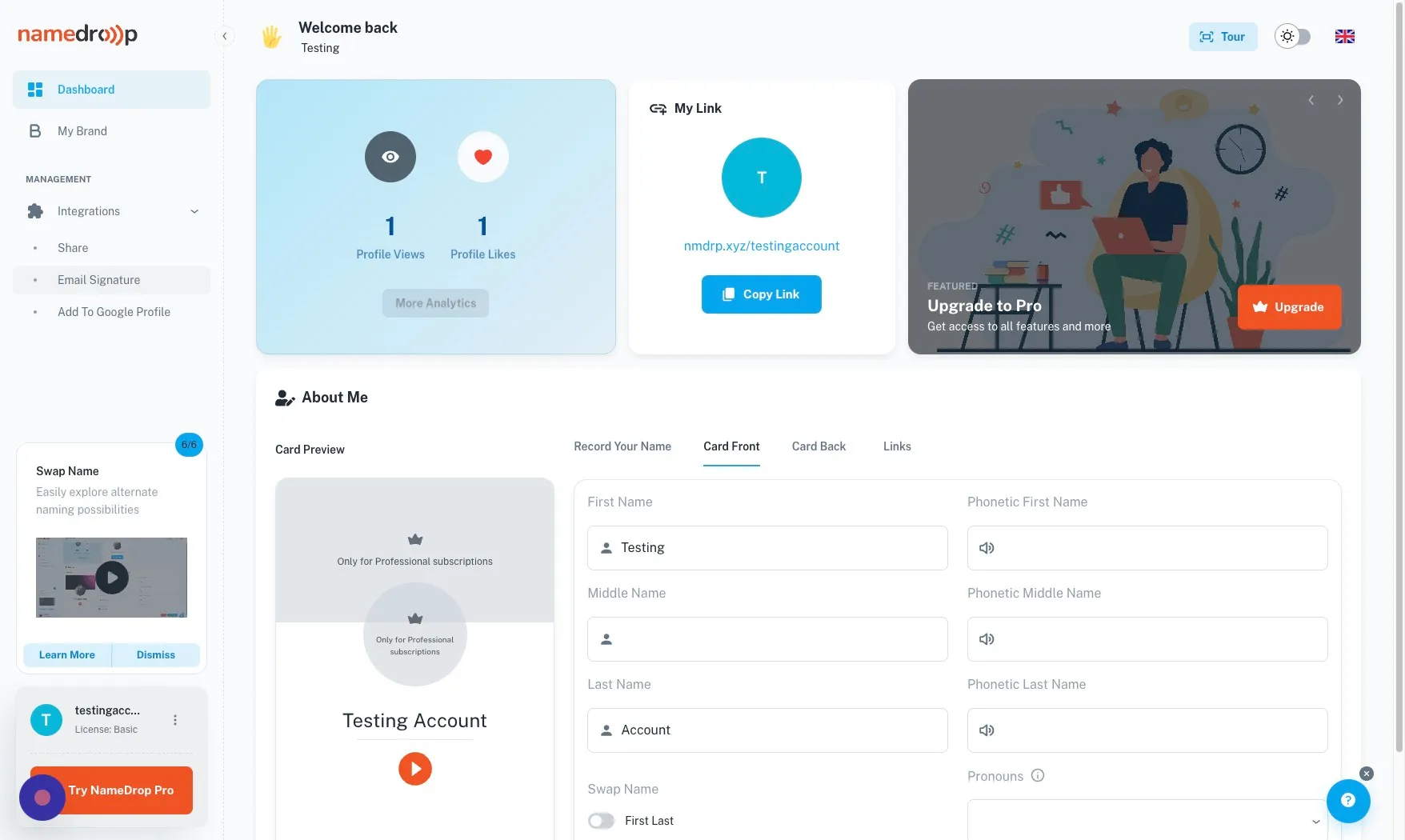
Navigate to your NameDrop Dashboard at user.namedrop.io/dashboard.
-
Click “Email Signature” under Integrations in the left navbar.
-
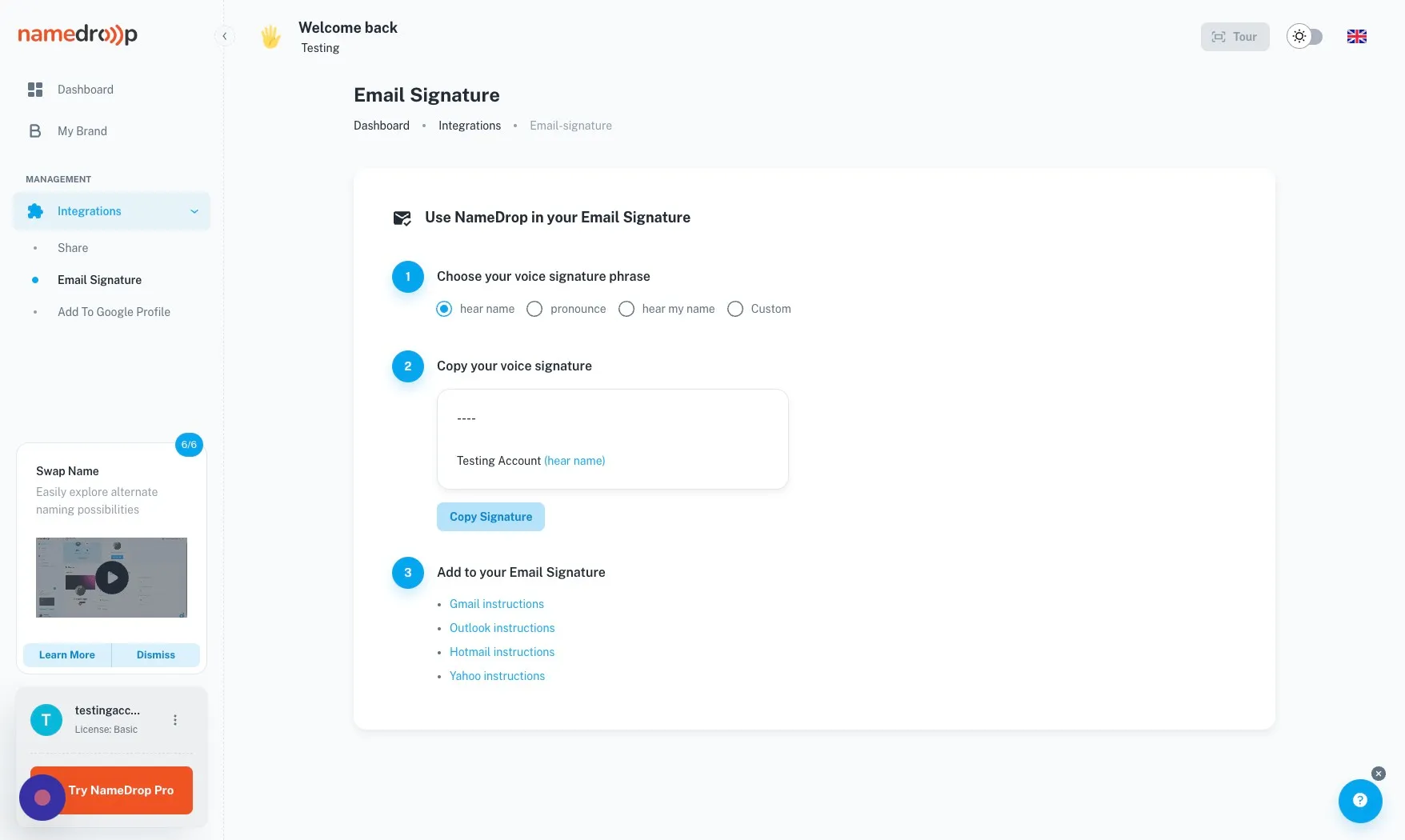
Click “Copy Signature” to copy the format of signature you prefer.
-
Go to your Gmail account at mail.google.com.
-
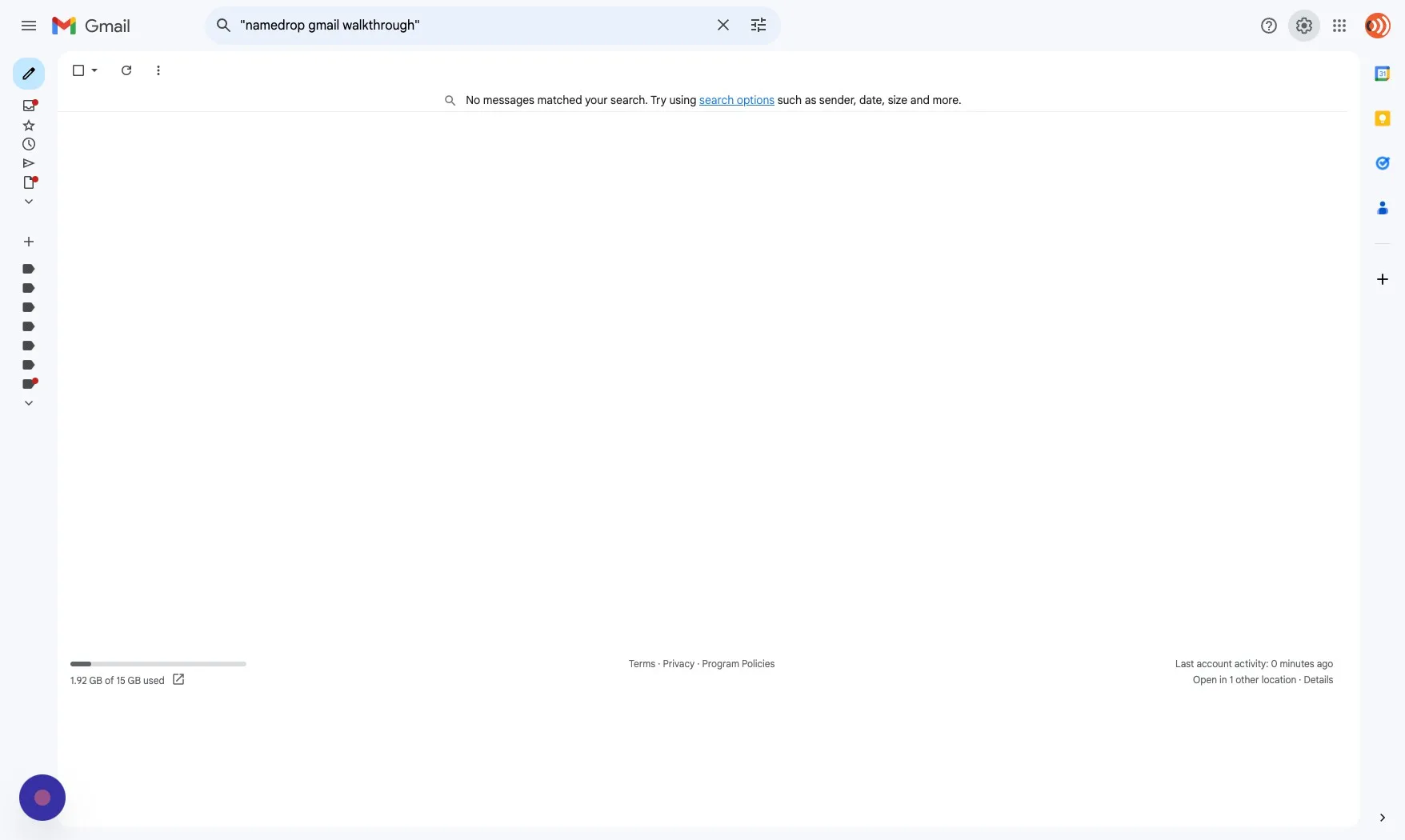
Click the Settings gear icon on the top right.
-
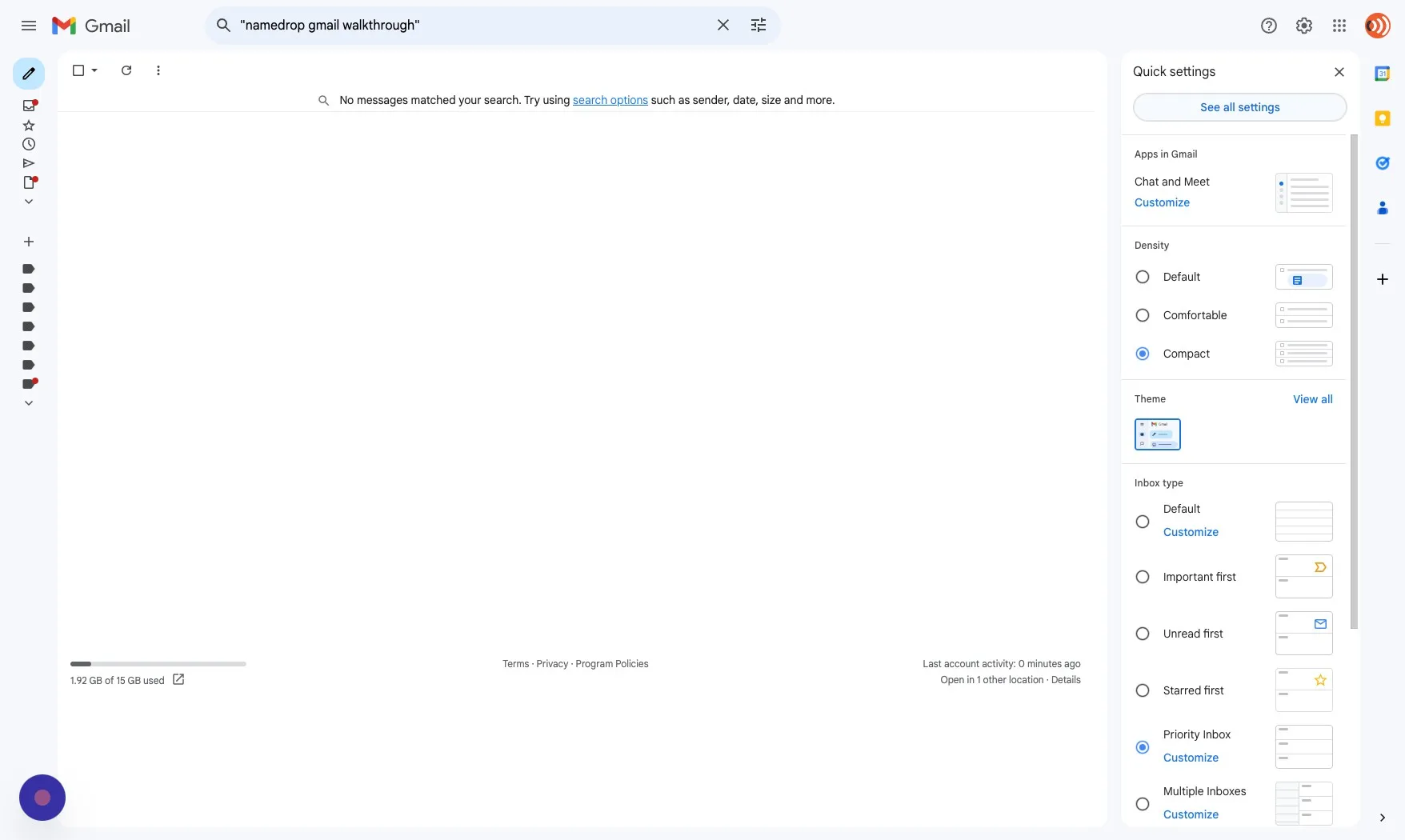
Click “See all settings” in the settings panel that appears.
-
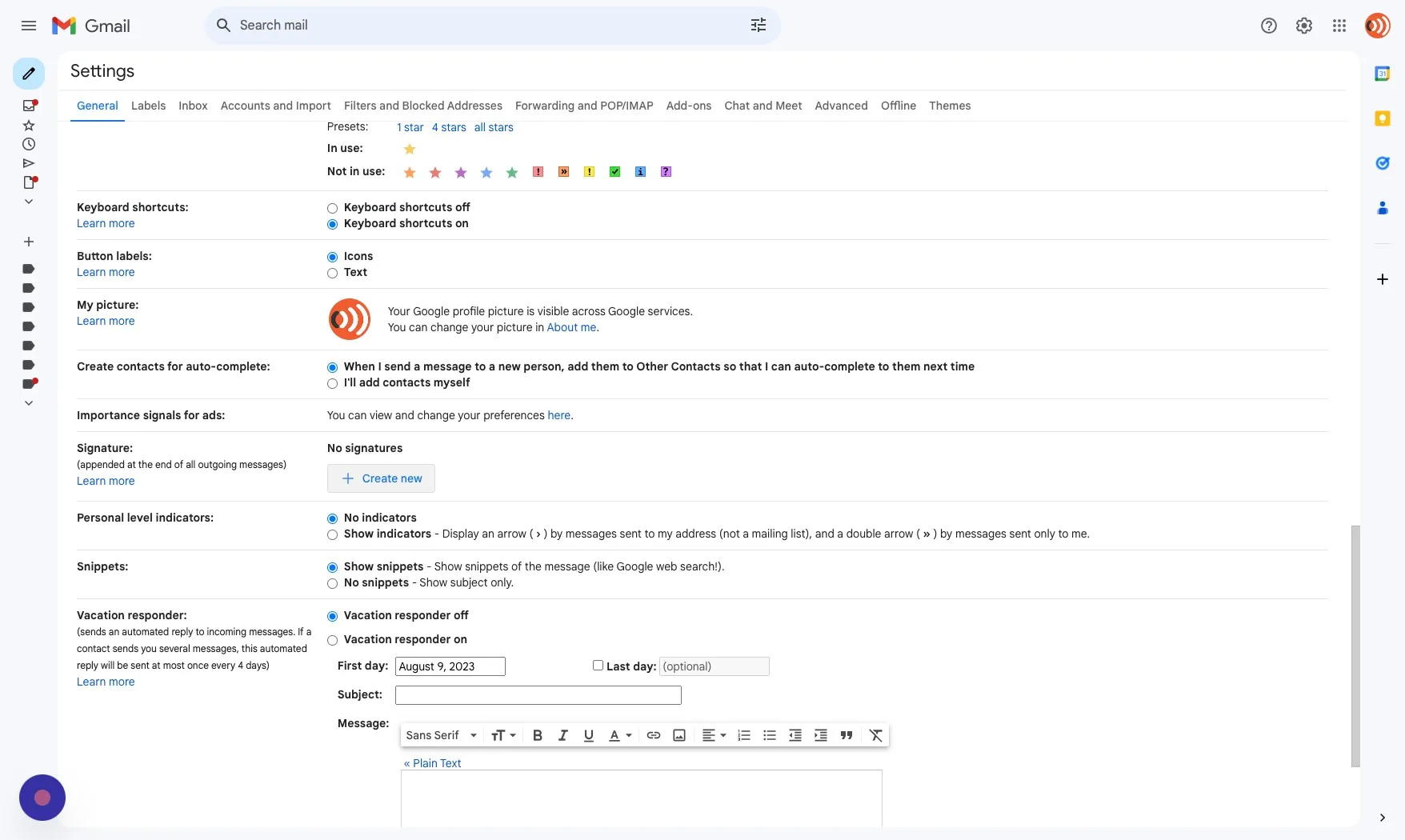
Click “Create new” in the Signature section.
You can also edit an existing signature instead.
-
Type a name for the new signature (e.g. “NameDrop”), then paste the signature you copied from the NameDrop dashboard into the signature editor.
-
Scroll down and click “Save Changes” to apply your new signature.
After setup
Section titled “After setup”Send yourself a test email — the “(pronounce)” link in your signature should open your NameDrop profile in a new tab and play your name recording.
Need a different client? See the parent Email Signatures guide for Outlook, Hotmail, and Yahoo.